


Guide
WhatsApp Business auto reply: how to set it up, plus ready-to-copy templates
Step by step for greeting messages, away messages and quick replies, with templates to copy and paste, and what to do when that is no longer enough.
By Bruno Porto7 min read
What can you automate in WhatsApp Business?
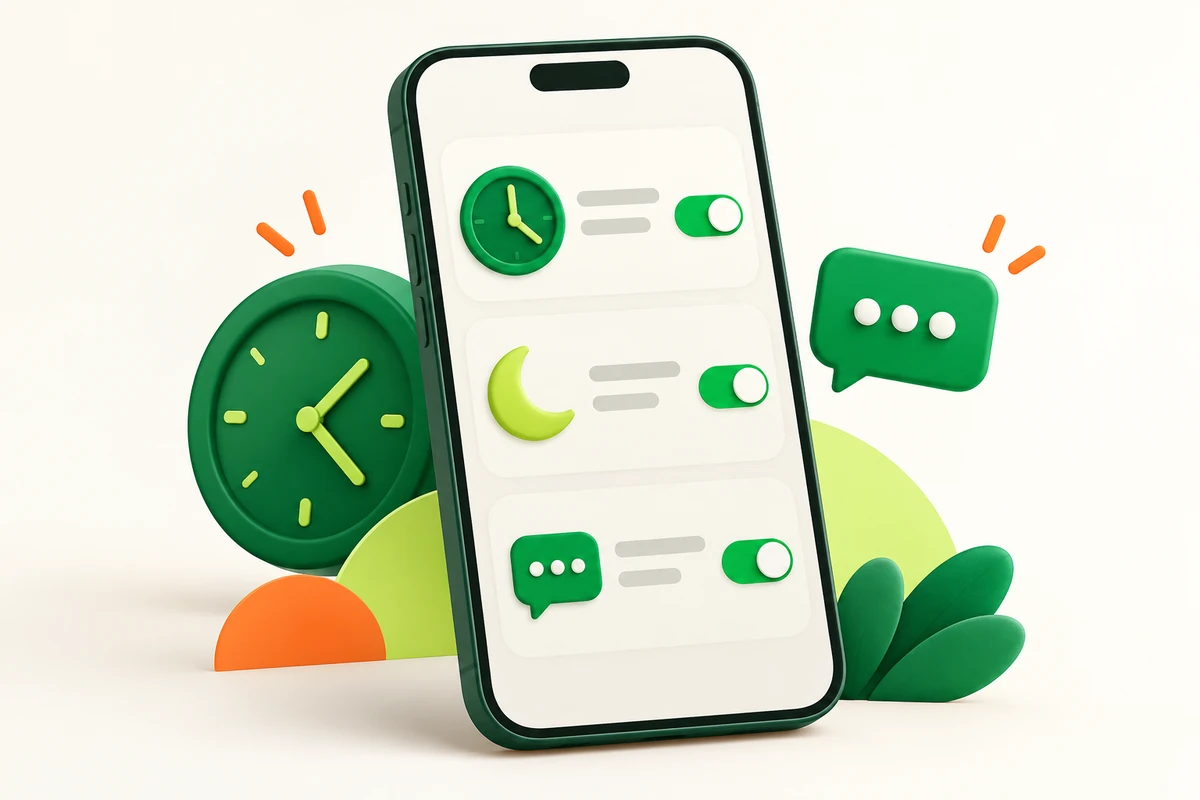
The free app includes three tools: the greeting message, sent on first contact; the away message, sent outside the hours you set; and quick replies, saved texts you call up with a slash during the conversation.
| Tool | When it is sent | What it is for |
|---|---|---|
| Greeting message | Automatically, on first contact | Welcoming people and explaining how you handle messages |
| Away message | Automatically, outside the hours you set | Telling people when they will get a reply |
| Quick replies | When you type "/" and pick the shortcut | Answering repeated questions without retyping |
Why reply instantly on WhatsApp?
Because customers are on WhatsApp all day and it is where they buy and book. An auto reply makes sure nobody goes without a first response, even after hours.
- 97%of WhatsApp users in Brazil open the app at least once a day.Opinion Box, WhatsApp no Brasil 2026
- 77%talk to brands through the app.Opinion Box, WhatsApp no Brasil 2026
- 75%have already booked a service on WhatsApp.Opinion Box, WhatsApp no Brasil 2026
People booking a service on WhatsApp often message several businesses at once. The first reply, even an automatic one, holds the conversation until someone on the team (or an AI agent) picks it up.
How do you set up an auto reply, step by step?
Everything is done in the app, under Business tools. The exact menu names may vary slightly depending on the app version and phone, but the path is the same on Android and iPhone.
Open Business tools
In WhatsApp Business, tap Settings (or the three dots) and go to Business tools.
Turn on the greeting message
Tap Greeting message, switch it on, write the text and choose who receives it: everyone, people not in your contacts or a list.
Schedule the away message
In Away message, switch it on, write the text and choose when it applies: always, outside business hours or on a custom schedule.
Create quick replies
In Quick replies, tap add, write the message and give it a short shortcut, such as /price or /address. In the chat, type "/" and pick it.
Test from another number
Send a message from a phone that is not in your contacts and see what arrives. Adjust the text until it sounds like your brand.
Which greeting message templates should you use?
Greetings work best when they are short, say who will reply and ask for the information that speeds things up. Replace the text in brackets with your business name.
- Hi! This is [business name]. We’ll reply shortly. To speed things up, tell us which service you’re looking for and for which day.
- Hello! Thanks for getting in touch with [business name]. If you’d like to book, tell us the service and the time that suits you best.
- Hi! Great to hear from you. We’re open Monday to Saturday, 9 am to 6 pm. Leave your question and we’ll get right back to you.
- Hello! You’re chatting with [business name]. For a quote, send a photo or describe what you need.
- Hi! To speed things up: type 1 to book, 2 for prices or 3 if you’re already a customer.
Which away message templates should you use?
A generic away message like "back soon" frustrates whoever wrote. A good one says when the person will get a reply and gives them a way to get things moving.
- Hi! We’re closed right now, but your message has arrived. We’ll reply tomorrow from 9 am. If you’d like to book, leave the service and the day.
- Hello! We’re back on Monday at 9 am. Leave your question here and it’ll be first in line.
- Hi! We’re closed today for the public holiday. We’re back tomorrow at 9 am and will reply in order.
- Hello! We’re with customers right now and will reply within 1 hour. Thanks for your patience!
- Hi! We got your message after hours. For anything urgent, call [phone]. For everything else, we’ll reply first thing tomorrow.
Which quick replies are worth saving?
Create a quick reply for every question you answer more than once a day. The most common ones for service businesses are price, address, payment methods, opening hours and appointment confirmation.
| Shortcut | Sample text |
|---|---|
| /address | We’re at [street, number, area]. Parking is [on the street / available nearby]. Here’s the location: [map link]. |
| /payment | We accept credit and debit cards and bank transfer. |
| /hours | We’re open Monday to Friday, 9 am to 6 pm, and Saturdays, 9 am to 1 pm. |
| /confirm | Your appointment is confirmed for [day] at [time]. If you need to reschedule, just let us know here in advance. |
| /price | [Service] costs [price] and takes about [time]. Shall I find a slot for you? |
Where does WhatsApp Business auto reply fall short?
The built-in tools always send the same text: they do not understand the question, check the calendar or book appointments. They let the customer know, but the conversation still waits for someone on the team to pick up the phone.
Handles well
- Welcoming people and explaining how you reply.
- Telling people when you will reply outside hours.
- Speeding up repeated answers for whoever is replying.
Does not handle
- Answering the question the customer asked, in their own words.
- Checking free slots and booking in the calendar.
- Following up with people who stopped replying.
- Understanding voice notes.
An auto reply says you will answer. An AI agent answers.
Frequently asked questions
- Is WhatsApp Business auto reply paid?
- No. Greeting messages, away messages and quick replies are free tools in the WhatsApp Business app.
- Can I set up an auto reply on regular WhatsApp?
- No. These tools only exist in WhatsApp Business. You can move your number to Business without losing your chats.
- Is the greeting message sent every time?
- No. It goes out on first contact and again when someone writes after a period without conversation.
- Can an auto reply book an appointment?
- The built-in tools cannot. For that you need an AI agent connected to your calendar, such as Caji Agent with Google Calendar.
Sources
From auto reply to real customer service
Try the Pro plan free for 7 days, no credit card, and watch the agent answer, book and follow up on your WhatsApp.
Try it free for 7 days

Keep reading
Applied AI
Chatbot or AI agent on WhatsApp: the difference and which to choose
A scripted chatbot follows a menu; an AI agent understands what the customer writes and gets it done. See how each one works, the pros and cons, and which fits your business.
6 min read
Guide
Follow-up messages for customers who stopped replying: WhatsApp templates for every stage
A customer asked for your price and went quiet? See when to get back in touch, what to write at each stage and how to automate follow-up without sounding like a bot.
6 min read